
How to Track CTA Clicks in Google Tag Manager
Learn how to track CTA clicks accurately using Google Tag Manager and GA4. Compare built-in GTM click tracking vs data layer implementations, improve conversion reporting, and build scalable event tracking frameworks.

Aiswarya Nair
Senior Implementation Specialist
Digital Analytics enthusiast, specializing in translating complex business requirements into clean, scalable measurement strategies. Delivers high-quality data foundations that enable accurate reporting, actionable insights, and effective optimization.
CTA tracking in Google Tag Manager helps marketers measure which buttons, links, and interactions actually drive conversions. Without structured CTA tracking in GA4, teams struggle to understand user intent, optimize conversion paths, and accurately measure campaign performance.
What is CTA Tracking in Google Tag Manager?
CTA tracking in Google Tag Manager (GTM) is the process of measuring how users interact with important buttons, links, forms, and conversion elements on a website. By sending CTA interaction data into Google Analytics 4 (GA4), marketers can identify which calls to action generate engagement, leads, and revenue.
Not All Clicks are Equal
Before you log into Google Tag Manager (GTM), you need a plan. Don't track everything-track what matters. We categorize clicks into three buckets:
High-Intent "Money" Clicks: Primary conversion points (e.g., Sign Up, Add to Cart).
Curiosity & Engagement Clicks: Micro-interactions like clicking a video play button or expanding an FAQ.
Exit & Resource Clicks: Outbound links to social media or PDF downloads.
The Beginner Method: Built-in GTM Events
For those just starting, GTM's built-in variables are the fastest way to get moving.
The 4-Step Technical Setup
Enable the "Eyes"
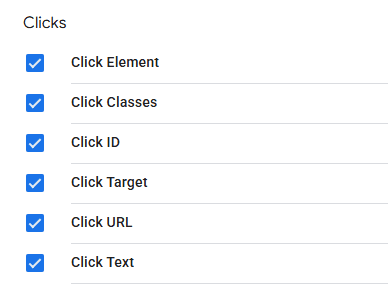
In GTM, go to Variables > Configure and check all boxes under Clicks (Click ID, Click Text, etc.).
Define the Trigger
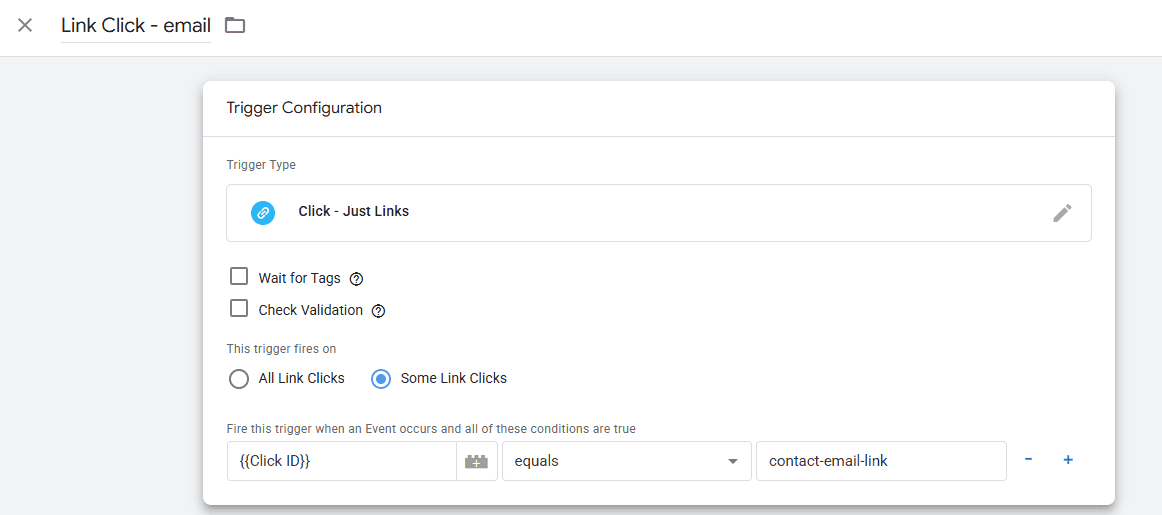
Create a new trigger for Click. Set it to fire on "Some Link Clicks" where the ClickID equals your link ID.
Configure the GA4 Event Tag
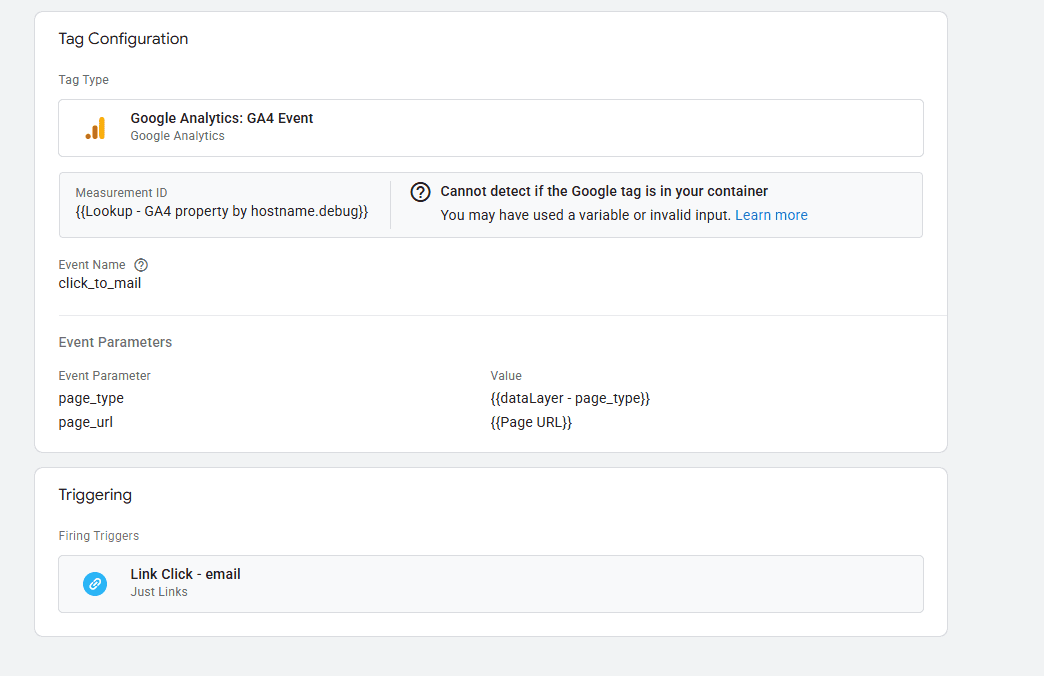
Create a GA4 Event Tag. Use an event_name like click_to_mail and add event parameters like page_type, page_url to get details of that click.
Test Using Preview Mode
Always use GTM’s Preview mode to ensure your tag "Fires" when the email is clicked.
Why Data Layer Tracking is the Best Long-Term Solution
While built-in GTM events (like tracking a "Click ID") are easy to set up, they are fragile. If a designer changes the button's ID or a developer updates the CSS, your tracking breaks instantly. You won't even know it's broken until you check your reports a week later and see zero conversions.
The "Bulletproof" Solution
For mission-critical buttons, the Data Layer is the gold standard. Instead of GTM "scraping" the website for a button ID, the website "pushes" a specific message directly to GTM.
Why it’s better:
Redesign-Proof: Your website's look can change 100 times, but as long as the code snippet remains, your data stays accurate.
Cleaner Data: You can pass complex information, like a
select_elementevent, which tells you exactly how a user interacted with a specific UI component.
How to Implement Data Layer CTA Tracking
Push Events to the Data Layer
Ask your developer to trigger this snippet when a user selects or clicks a CTA:
window.dataLayer = window.dataLayer || [];
window.datalayer.push({
event: select_element,
element_type: [type_of_element] // button,link,tab,image,etc
element_text: [text_of_click] // the text displayed on the click
location: [location_of_the_element] // where that element is located on the website
})
Create Data Layer Variables In GTM:
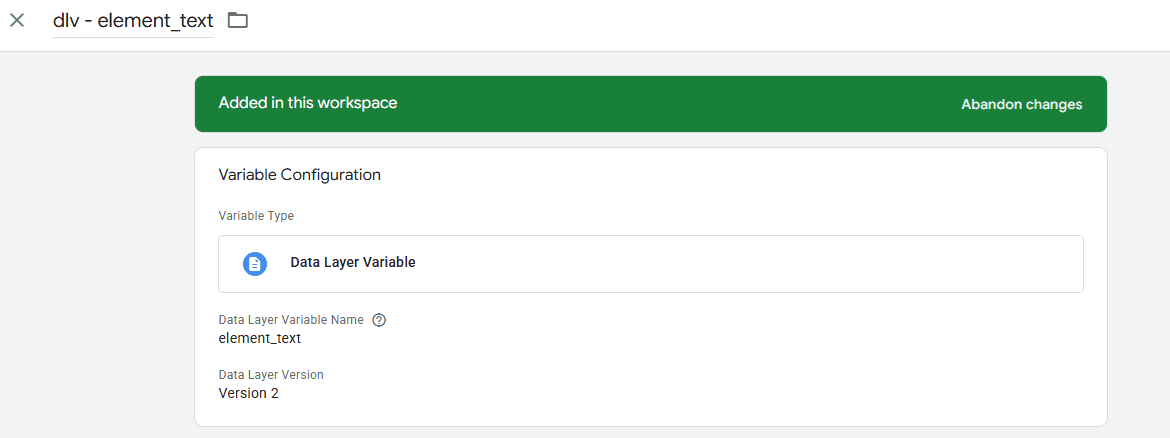
GTM needs to know how to "read" the keys inside your code snippet. You must create a variable for each one.
In GTM, go to Variables > User-Defined Variables > New.
Choose Data Layer Variable.
Data Layer Variable Name: Must match your code exactly. Create three separate variables)
Note: Naming of data layer variable is critical. Try to reuse existing variables if possible
element_type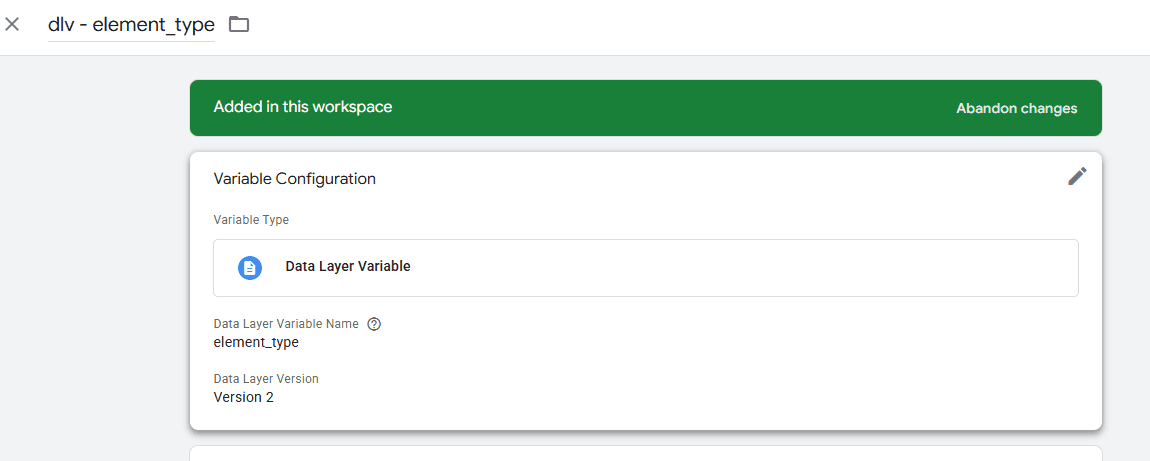
element_text
location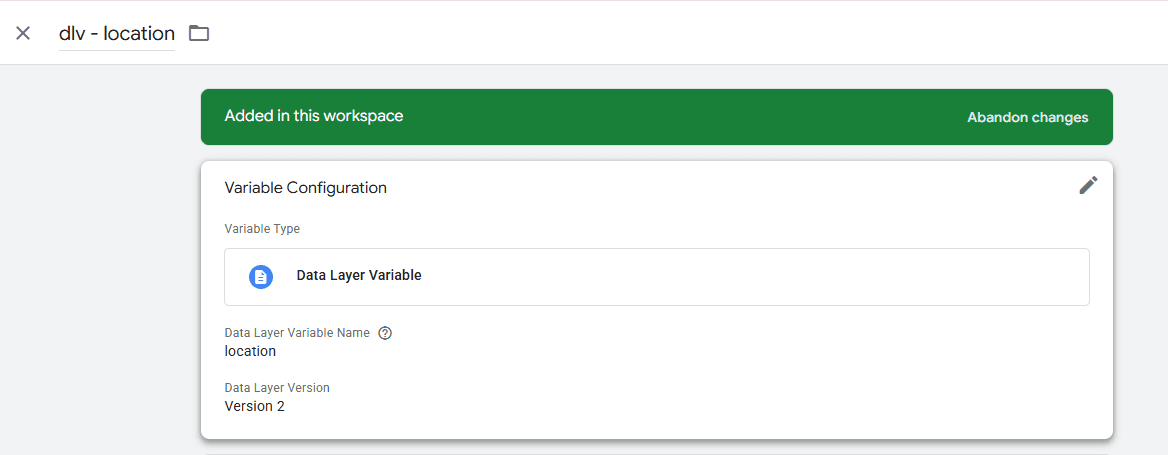
Create the Custom Event Trigger
This trigger tells GTM to fire whenever the select_element event is pushed.
Go to Triggers > New.
Select Trigger Type: Custom Event.
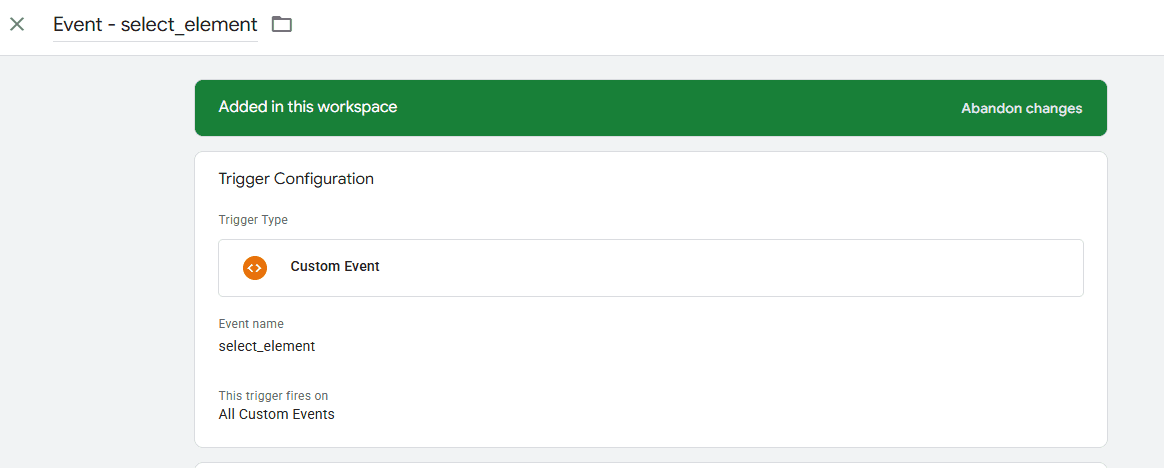
Event Name:
select_element
Send Events to Google Analytics
Now, we map those variables into your analytics.
Go to Tags > New > Google Analytics: GA4 Event
Title of the tag: GA4 - Event - select_element
Event Name:
select_elementEvent Parameters: Add event parameters like element_type, element_text and location to send your custom data to GA4:
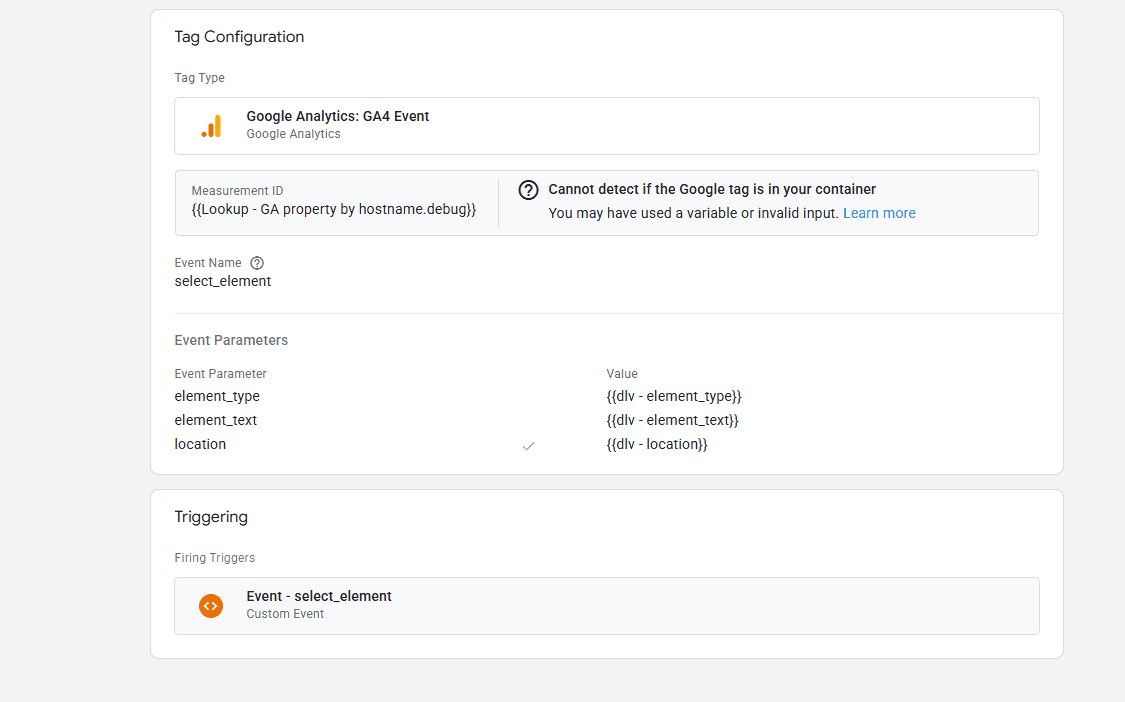
Triggering: Select the
Event - select_elementtrigger from Step 2.
Why is this the "Best" way to track
By using this method, you have created a universal tracking schema.
Instead of creating 50 different tags for 50 different buttons, you now have one single tag that dynamically adapts. Whether someone clicks a "tab" in the footer or a "button" in the hero section, the data flows through the same pipeline, making your GA4 reports incredibly clean and organized.
Final Thoughts
Effective CTA tracking is not just about measuring clicks. It is about building a reliable measurement framework that helps marketers understand user intent, optimize conversion paths, and make better business decisions with confidence.
While Google Tag Manager’s built-in click tracking can be a fast way to get started, it often becomes difficult to maintain as websites evolve. For organizations that rely on accurate conversion data in GA4, a structured data layer approach provides a far more scalable and reliable foundation. It creates cleaner reporting, reduces implementation risk, and makes long-term analytics governance significantly easier.
The most successful tracking strategies are built around consistency. Standardized event naming, reusable schemas, proper QA processes, and ongoing validation ensure that your CTA data remains trustworthy over time. Whether you are tracking form submissions, demo requests, downloads, or engagement interactions, the goal should always be the same: collect data that is accurate enough to drive real optimization decisions.
As digital experiences become more complex and privacy expectations continue to evolve, investing in a durable analytics architecture is no longer optional. Strong CTA tracking helps transform Google Analytics 4 from a reporting platform into a meaningful decision-making tool that supports marketing performance, conversion optimization, and revenue growth.
More Insights
Understanding the IAB TCF v2.3 Update: New Vendor Disclosure Requirements Explained

Rob English
Director, Data Solutions
Jun 17, 2026
Read More
How to Choose the Right ETL Tool for Your Data Pipeline

Cem Bakar
Cloud Architect
Jun 10, 2026
Read More

CM360 Path to Conversion Reporting: Full Customer Journey Attribution

Monika Boldak
Associate Director, Marketing
Jun 3, 2026
Read More
More Insights
Sign Up For Our Newsletter

Napkyn Inc.
204-78 George Street, Ottawa, Ontario, K1N 5W1, Canada
Napkyn US
6 East 32nd Street, 9th Floor, New York, NY 10016, USA
212-247-0800 | info@napkyn.com


How to Track CTA Clicks in Google Tag Manager
Learn how to track CTA clicks accurately using Google Tag Manager and GA4. Compare built-in GTM click tracking vs data layer implementations, improve conversion reporting, and build scalable event tracking frameworks.
Aiswarya Nair
Senior Implementation Specialist
May 6, 2026
Digital Analytics enthusiast, specializing in translating complex business requirements into clean, scalable measurement strategies. Delivers high-quality data foundations that enable accurate reporting, actionable insights, and effective optimization.
CTA tracking in Google Tag Manager helps marketers measure which buttons, links, and interactions actually drive conversions. Without structured CTA tracking in GA4, teams struggle to understand user intent, optimize conversion paths, and accurately measure campaign performance.
What is CTA Tracking in Google Tag Manager?
CTA tracking in Google Tag Manager (GTM) is the process of measuring how users interact with important buttons, links, forms, and conversion elements on a website. By sending CTA interaction data into Google Analytics 4 (GA4), marketers can identify which calls to action generate engagement, leads, and revenue.
Not All Clicks are Equal
Before you log into Google Tag Manager (GTM), you need a plan. Don't track everything-track what matters. We categorize clicks into three buckets:
High-Intent "Money" Clicks: Primary conversion points (e.g., Sign Up, Add to Cart).
Curiosity & Engagement Clicks: Micro-interactions like clicking a video play button or expanding an FAQ.
Exit & Resource Clicks: Outbound links to social media or PDF downloads.
The Beginner Method: Built-in GTM Events
For those just starting, GTM's built-in variables are the fastest way to get moving.
The 4-Step Technical Setup
Enable the "Eyes"
In GTM, go to Variables > Configure and check all boxes under Clicks (Click ID, Click Text, etc.).
Define the Trigger
Create a new trigger for Click. Set it to fire on "Some Link Clicks" where the ClickID equals your link ID.
Configure the GA4 Event Tag
Create a GA4 Event Tag. Use an event_name like click_to_mail and add event parameters like page_type, page_url to get details of that click.
Test Using Preview Mode
Always use GTM’s Preview mode to ensure your tag "Fires" when the email is clicked.
Why Data Layer Tracking is the Best Long-Term Solution
While built-in GTM events (like tracking a "Click ID") are easy to set up, they are fragile. If a designer changes the button's ID or a developer updates the CSS, your tracking breaks instantly. You won't even know it's broken until you check your reports a week later and see zero conversions.
The "Bulletproof" Solution
For mission-critical buttons, the Data Layer is the gold standard. Instead of GTM "scraping" the website for a button ID, the website "pushes" a specific message directly to GTM.
Why it’s better:
Redesign-Proof: Your website's look can change 100 times, but as long as the code snippet remains, your data stays accurate.
Cleaner Data: You can pass complex information, like a
select_elementevent, which tells you exactly how a user interacted with a specific UI component.
How to Implement Data Layer CTA Tracking
Push Events to the Data Layer
Ask your developer to trigger this snippet when a user selects or clicks a CTA:
window.dataLayer = window.dataLayer || [];
window.datalayer.push({
event: select_element,
element_type: [type_of_element] // button,link,tab,image,etc
element_text: [text_of_click] // the text displayed on the click
location: [location_of_the_element] // where that element is located on the website
})
Create Data Layer Variables In GTM:
GTM needs to know how to "read" the keys inside your code snippet. You must create a variable for each one.
In GTM, go to Variables > User-Defined Variables > New.
Choose Data Layer Variable.
Data Layer Variable Name: Must match your code exactly. Create three separate variables)
Note: Naming of data layer variable is critical. Try to reuse existing variables if possible
element_type
element_text
location
Create the Custom Event Trigger
This trigger tells GTM to fire whenever the select_element event is pushed.
Go to Triggers > New.
Select Trigger Type: Custom Event.
Event Name:
select_element
Send Events to Google Analytics
Now, we map those variables into your analytics.
Go to Tags > New > Google Analytics: GA4 Event
Title of the tag: GA4 - Event - select_element
Event Name:
select_elementEvent Parameters: Add event parameters like element_type, element_text and location to send your custom data to GA4:
Triggering: Select the
Event - select_elementtrigger from Step 2.
Why is this the "Best" way to track
By using this method, you have created a universal tracking schema.
Instead of creating 50 different tags for 50 different buttons, you now have one single tag that dynamically adapts. Whether someone clicks a "tab" in the footer or a "button" in the hero section, the data flows through the same pipeline, making your GA4 reports incredibly clean and organized.
Final Thoughts
Effective CTA tracking is not just about measuring clicks. It is about building a reliable measurement framework that helps marketers understand user intent, optimize conversion paths, and make better business decisions with confidence.
While Google Tag Manager’s built-in click tracking can be a fast way to get started, it often becomes difficult to maintain as websites evolve. For organizations that rely on accurate conversion data in GA4, a structured data layer approach provides a far more scalable and reliable foundation. It creates cleaner reporting, reduces implementation risk, and makes long-term analytics governance significantly easier.
The most successful tracking strategies are built around consistency. Standardized event naming, reusable schemas, proper QA processes, and ongoing validation ensure that your CTA data remains trustworthy over time. Whether you are tracking form submissions, demo requests, downloads, or engagement interactions, the goal should always be the same: collect data that is accurate enough to drive real optimization decisions.
As digital experiences become more complex and privacy expectations continue to evolve, investing in a durable analytics architecture is no longer optional. Strong CTA tracking helps transform Google Analytics 4 from a reporting platform into a meaningful decision-making tool that supports marketing performance, conversion optimization, and revenue growth.
More Insights

How to Detect Google Analytics Tracking Issues Early with Automated QA

Skylar van Dalen-Flude
Senior Data Analyst
Aug 26, 2026
Read More

Why GA4, Google Ads, and BigQuery Numbers Don’t Match

Chris Wright
Associate Director, Training and Development
Jul 15, 2026
Read More

Google Ads Data Manager: Building More Reliable Marketing Data Pipelines with First-Party Data
Monika Boldak
Associate Director, Marketing
Jul 8, 2026
Read More
More Insights
Sign Up For Our Newsletter